Control every screen from one place
Ten screens or three hundred. Groups and priorities make one change reach exactly the screens it should, and no others.
Groups
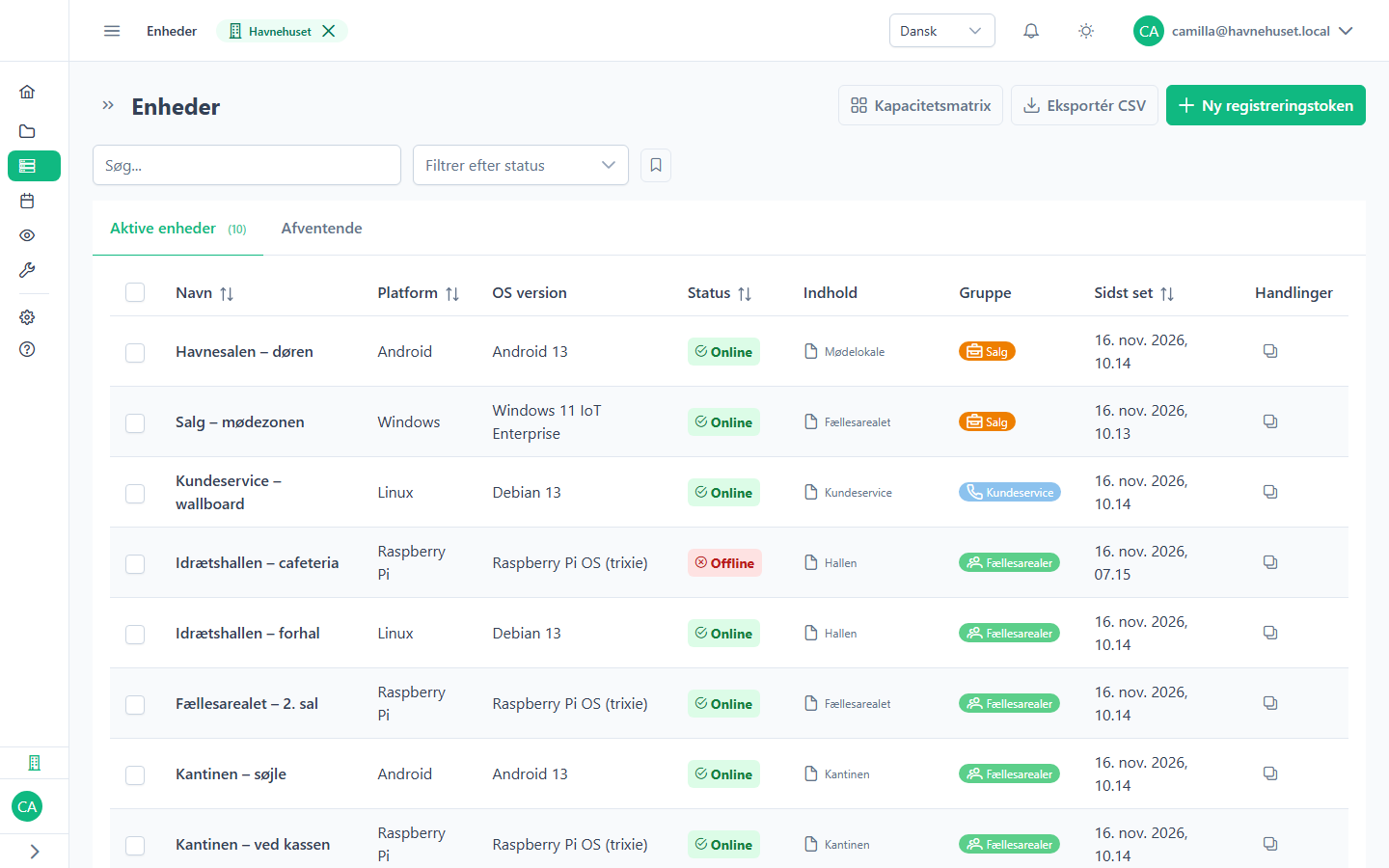
Divide the screens by location or department. Each group has its own schedules, themes, time zone and update rules, and a change only reaches the group's screens.
A screen can be in several groups. The group with the highest priority decides.
| Group | Time zone | Theme | Schedule |
|---|---|---|---|
| EU | Copenhagen | Standard | Office hours |
| USA | New York | Standard | Office hours |
| Asia | Singapore | Standard | Office hours |
| Preparation | Copenhagen | Workshop | Around the clock |
| Sales | Copenhagen | Christmas theme | Opening hours |
Highest priority wins
The screen comes before the group, and the group comes before the organisation. Anything you do not set is inherited from the level below. If you set something on a single screen, it only applies there, for example that it always shows English or is always in the Christmas theme.
A page can also have its own language and theme. A weighting decides whether the page or the screen has the final say.
| Setting | Organisation | Group | Screen | Shown |
|---|---|---|---|---|
| Language | Danish | – | English | English |
| Theme | Standard | Christmas theme | Inherits | Christmas theme |
| Time zone | Copenhagen | New York | Inherits | New York |
| Restart after OS update | 04:00 | Inherits | 05:00 | 05:00 |
Scheduling
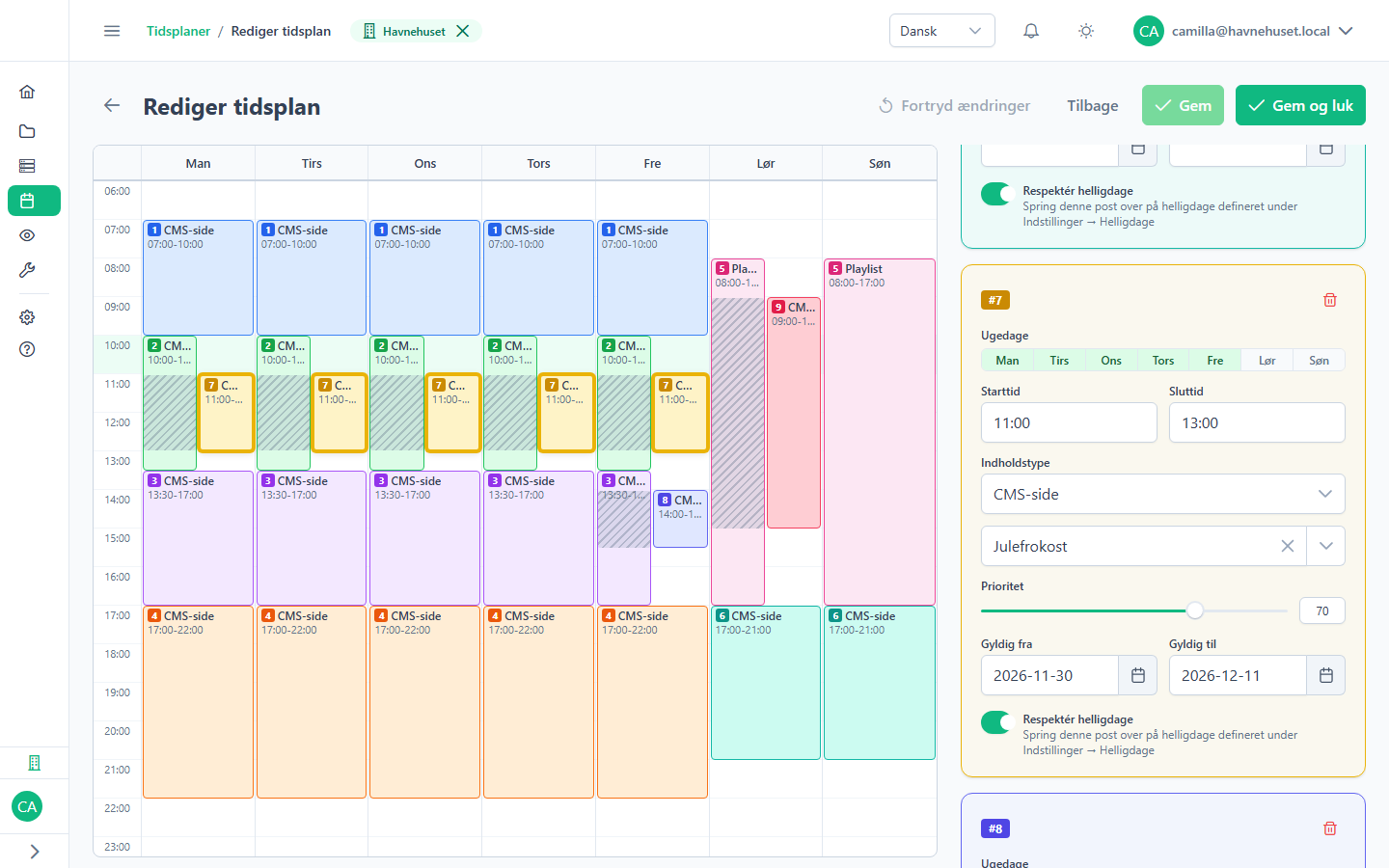
Prepare pages, playlists and campaigns in advance, from morning to evening and week by week. Several items can sit side by side at the same time; the one with the highest priority is shown. An item can also apply only for a period, for example in the run-up to Christmas. Drag an item to move it.
Public holidays are skipped, and the screen's own schedule takes precedence over the group's.
| Item | Days | Time | Period | Priority |
|---|---|---|---|---|
| Breakfast menu | Mon–Fri | 07:00–10:00 | Ongoing | 50 |
| Dish of the day | Mon–Fri | 10:00–14:00 | Ongoing | 50 |
| Christmas party | Every day | All day | 1–19 December | 80 |
| Off at night | Every day | 22:00–06:00 | Ongoing | 90 |
Changes, remote control and emergency messages
- Straight away
- Press Save, and the change reaches all screens at the same time. Google Slides runs in sync on several screens.
- Commands
- Restart, take a screenshot, clear the cache or identify the screen. Restart, update and screenshot can be sent to a whole group at once.
- Remote control
- See the screen live, and take it over when help is needed. It requires two-factor login, and everything is logged. Windows, Linux and Raspberry Pi.
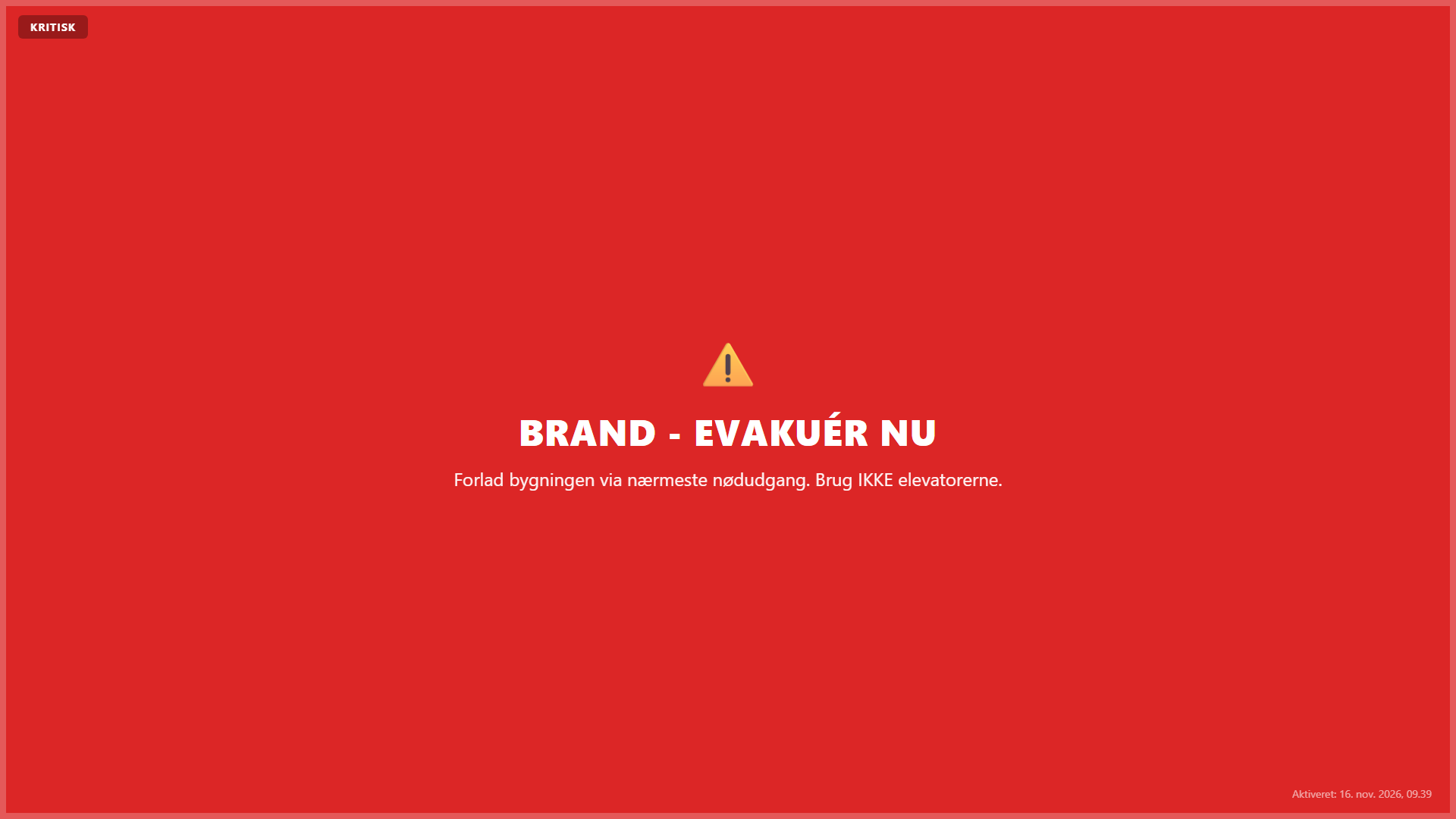
- Emergency message
- One click in the admin, or automatically from a fire alarm, a sensor or an alert feed. Choose all screens, a group or one screen.
- Emergency message templates
- Ten ready-made templates, including fire, lockdown, severe weather and medical emergency. Screens that are off are switched on, and the message can have sound.
See Morgana with your own screens
15 minutes in which we show what Morgana can do for your screens.