Design once. For every screen.
Build the pages in an editor that shows exactly what the screen shows. The same page can run on a landscape screen in reception, a portrait screen by the entrance and a tablet by the meeting room.
One page, many formats
A page can have several formats at once. The content is shared between the formats, while the layout is adapted to each one. The screen picks the format that fits best and scales it to its resolution. You can also move, hide or copy a single widget in one format without touching the others.
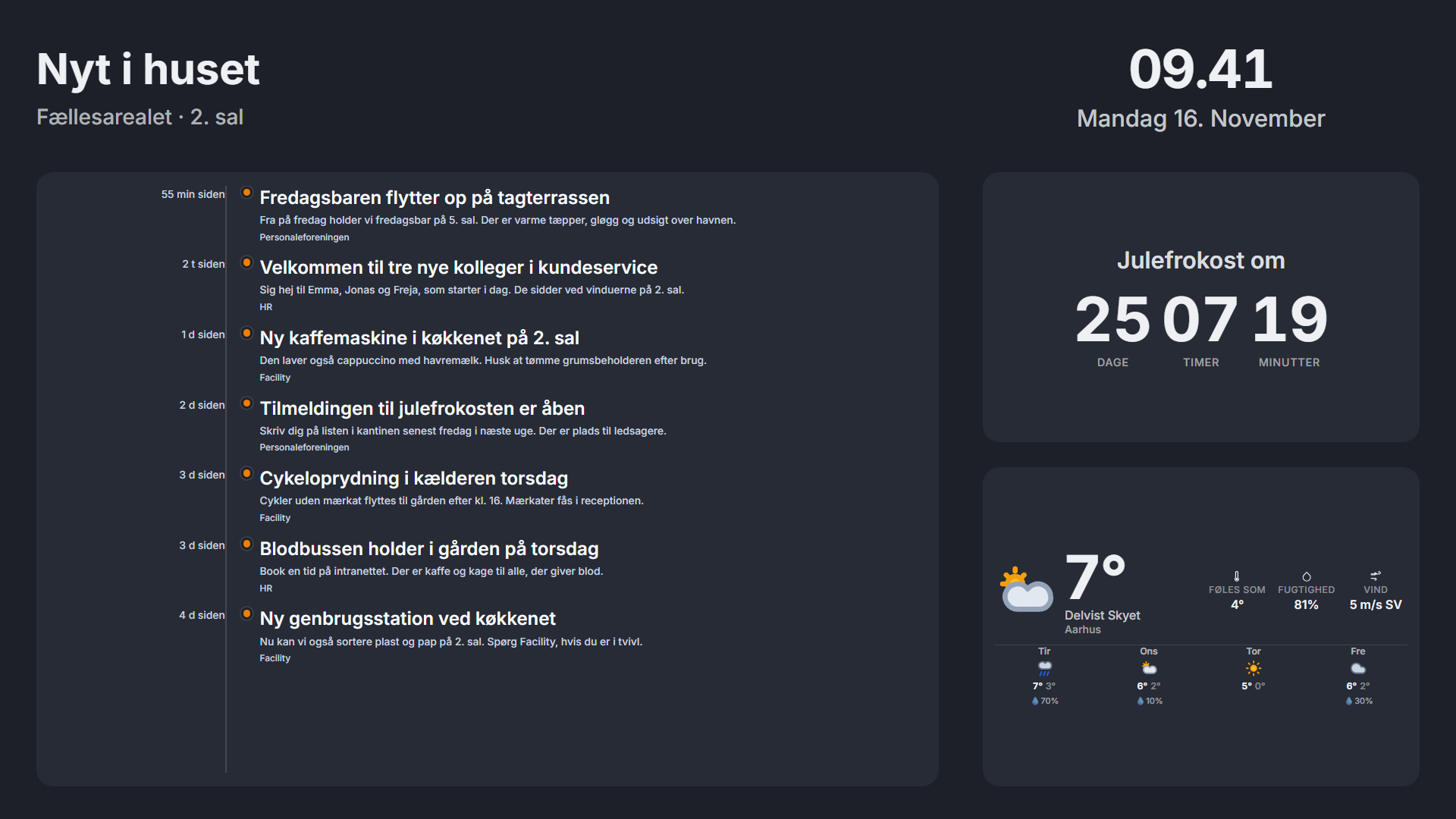
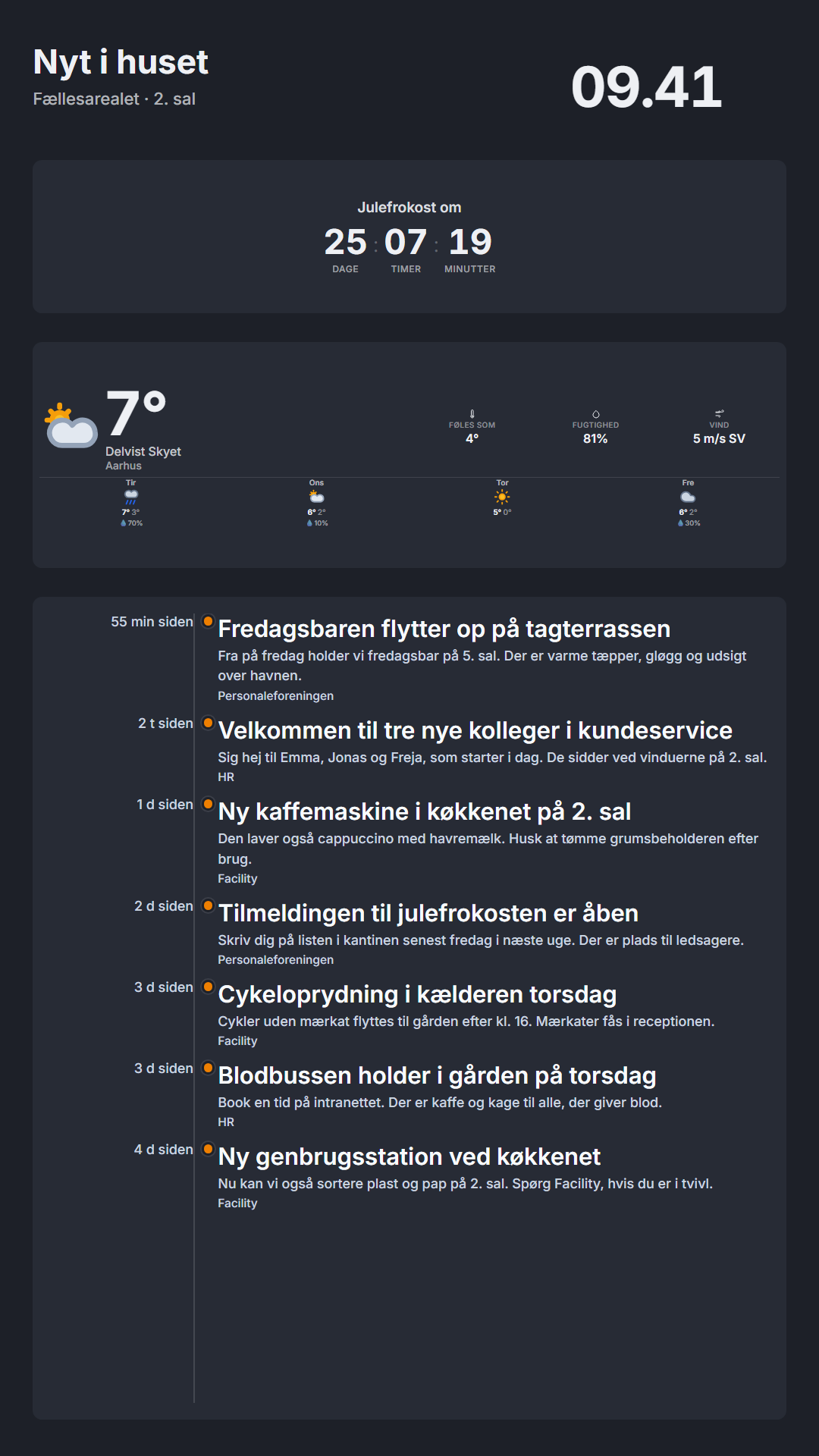
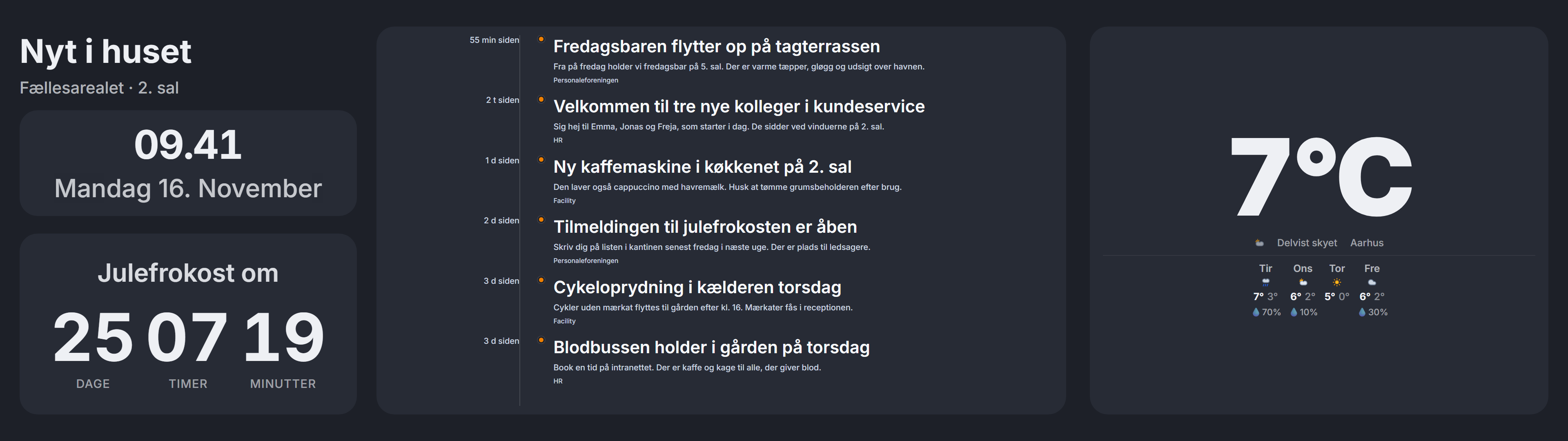
- 16:9
- 9:16
- 21:9
- 32:9
- 4:3
- 16:10
- 1:1
- Custom
These are the most used. Morgana handles all screen formats, including your own resolution, e.g. 2560 × 1080.
The editor
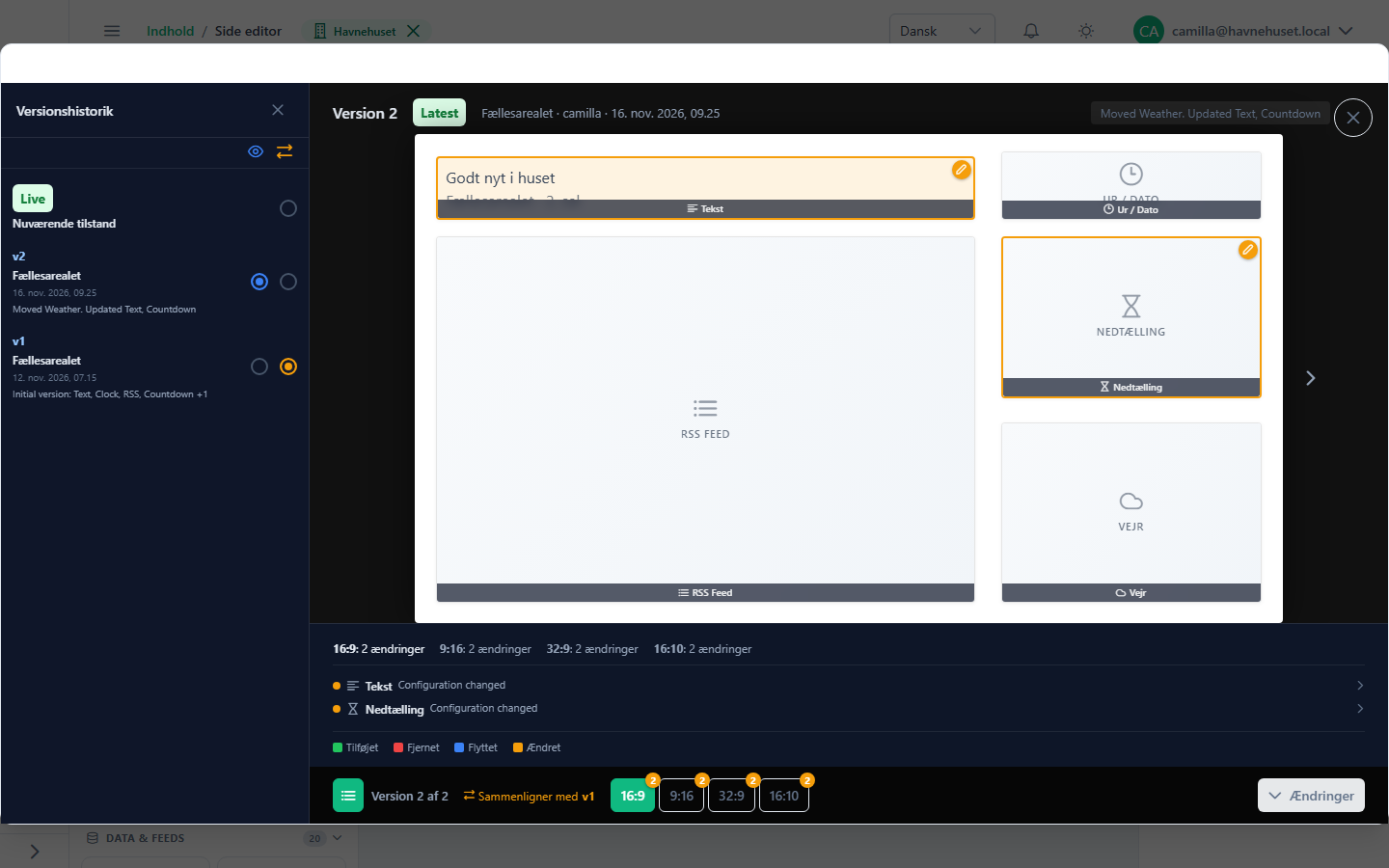
Drag widgets onto the page and see the result straight away. The formats are buttons in the toolbar, so you switch between landscape, portrait and ultra-wide with one click.
- Drag and drop
- Place text, images, video, calendars, weather and over 30 other widgets freely on the page.
- Templates
- Start from a template, and save your own pages and zone layouts as templates.
- Approval
- Editors can send pages for approval before they go on screen.
- Version history
- Every published version is saved. Compare two versions, and restore the one that was best.
Brand kit and themes
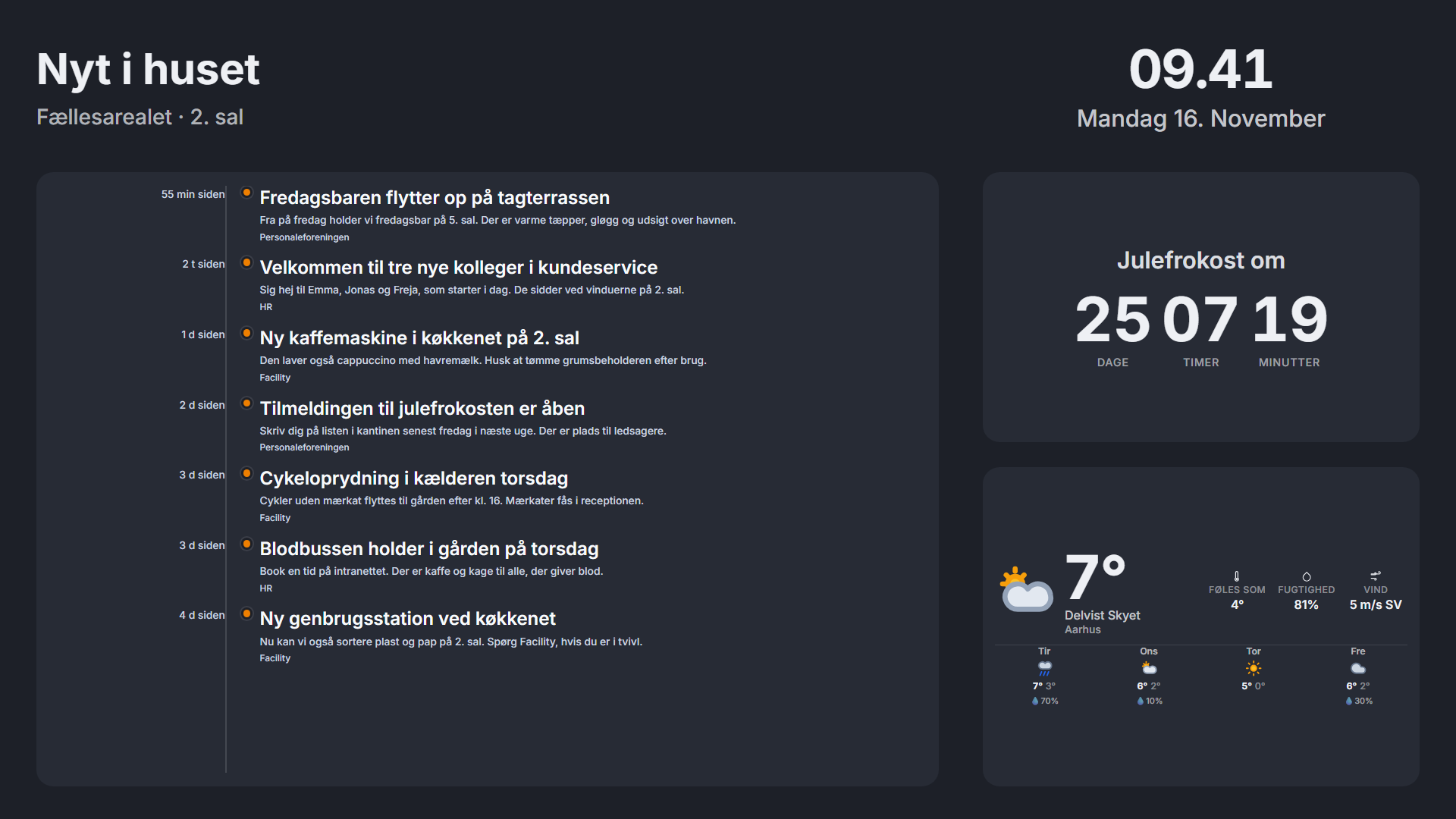
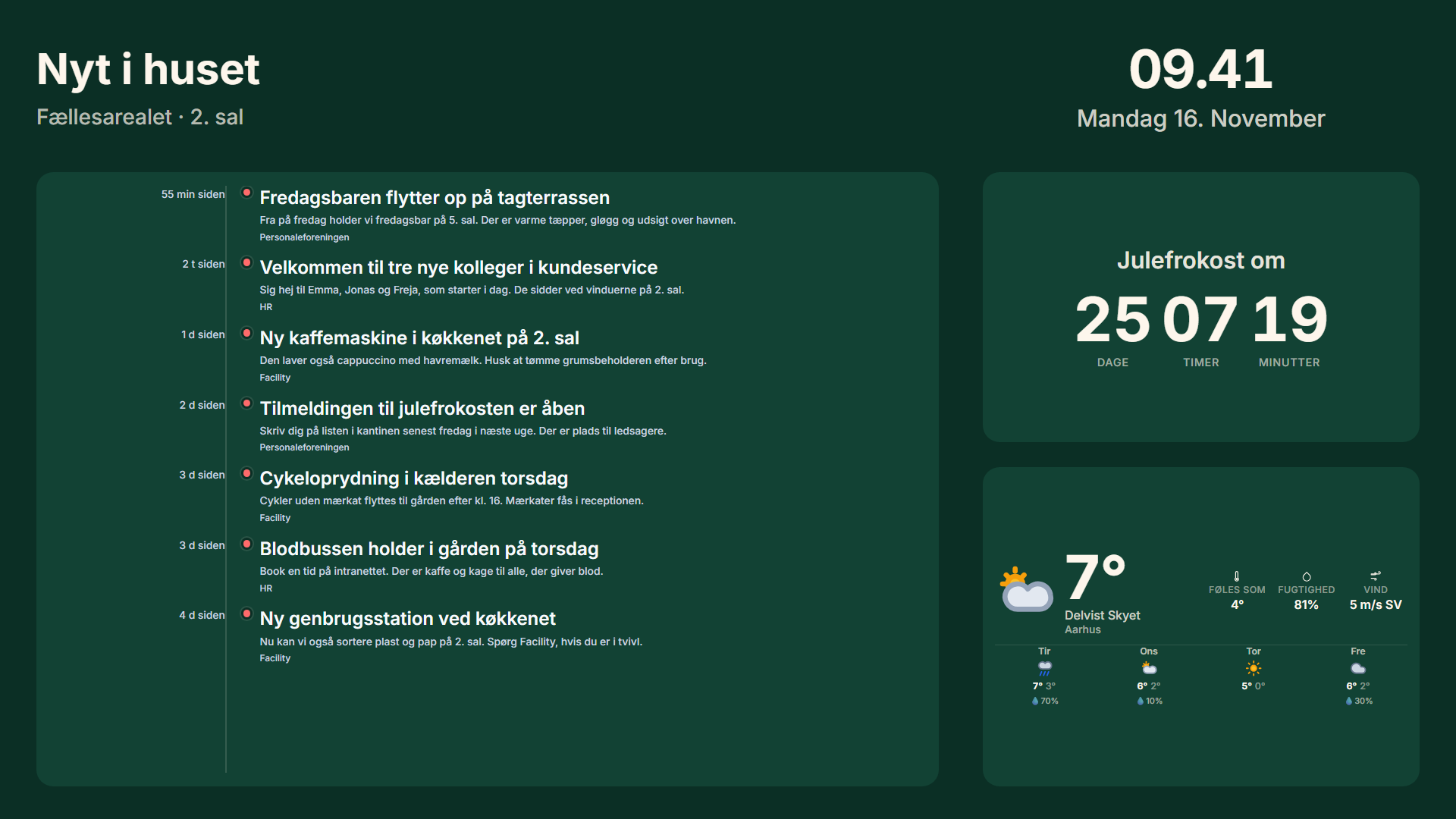
Keep your colours, fonts and logo in one place. A theme brings colours and font together, and you can have up to 20 of them, such as a Christmas theme for December.
The theme can be set on a screen, a group or a single page. Change the theme, and everything that uses the theme's colours changes with it.
| Role | Used for |
|---|---|
| Primary and secondary | Surfaces, buttons and highlights |
| Text and heading | Body text and headings |
| Background and accent | The page background and small markers |
| Free, occupied, upcoming | Status of meeting rooms and bookings |
Playlists, media and AI
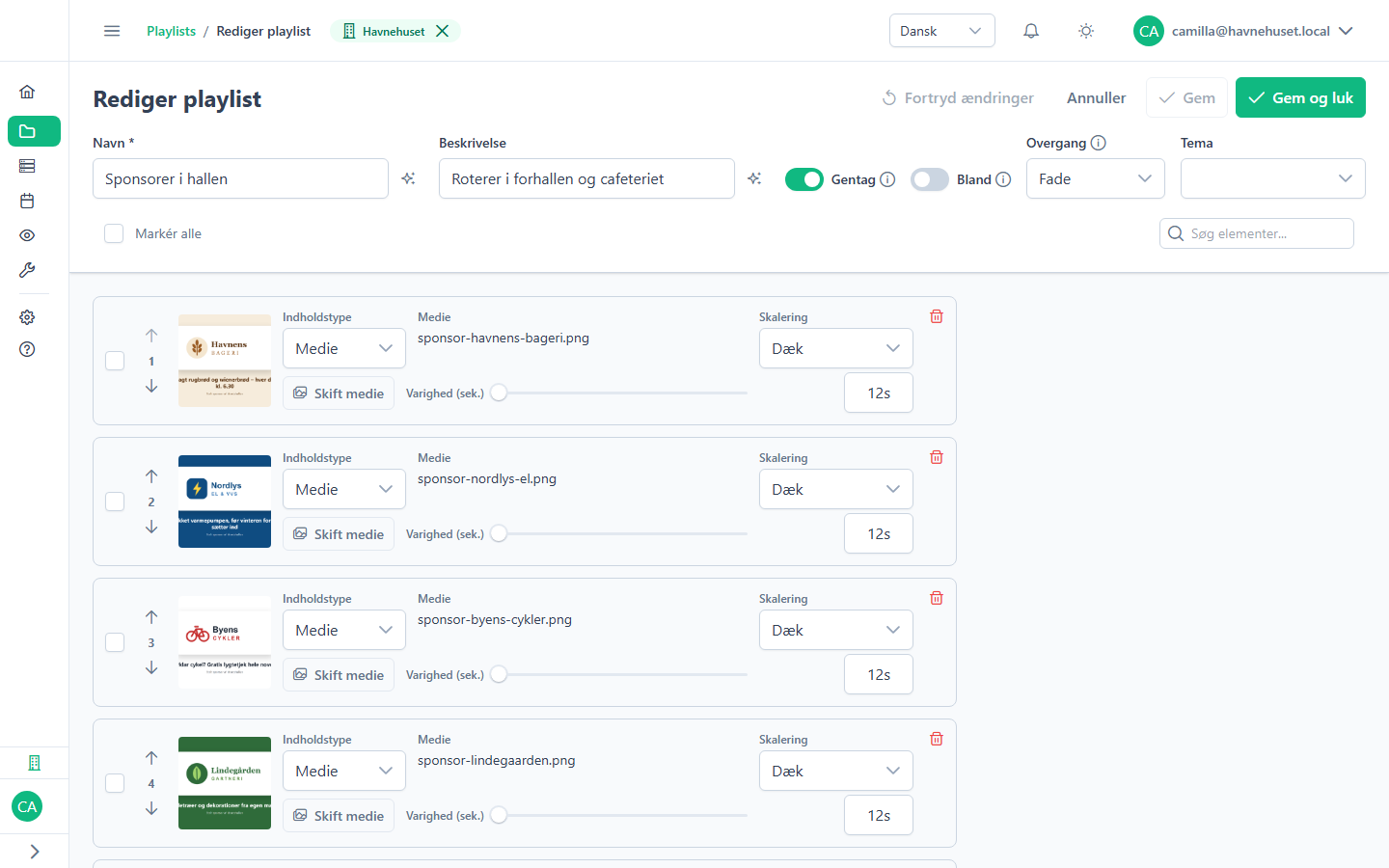
Gather what goes on screen again and again in one place. A playlist of sponsors can be shown full screen or as part of a page.
- Media library
- Images, video and audio in one place. Video can be trimmed directly in the library, and images can come in by email.
- AI with your own keys
- Write text, and create images, alt text and read-aloud audio directly in the editor. Use your own keys from OpenAI, Anthropic, Azure or Replicate.
- First draft
- Describe what the screen should show, and AI makes a first draft of the page.
- Your tone
- Give the AI a few of your texts, and it writes in your tone.
Over 30 widgets
Each widget can fill a whole screen on its own or sit with others on a page.
See Morgana with your own screens
15 minutes in which we show what Morgana can do for your screens.